I tried using the CoplayDev version of unity-mcp, and it allowed Codex to control Unity quite easily. I was also able to have it develop a simple game, including tests, so I’m writing this down as a memo.

Environment
- MacOS: 26.5.1 (25F80)
- Unity Editor: 6000.4.0f1
- unity-mcp: v9.7.3
- Codex: v0.139.0
- Model: GPT-5.5
Installing unity-mcp
This is exactly the same as the installation method described in the Install section of the GitHub repository README.
1. In Unity Hub, create a new Universal 3D project from New project. Leave everything as default except for the project name and location.
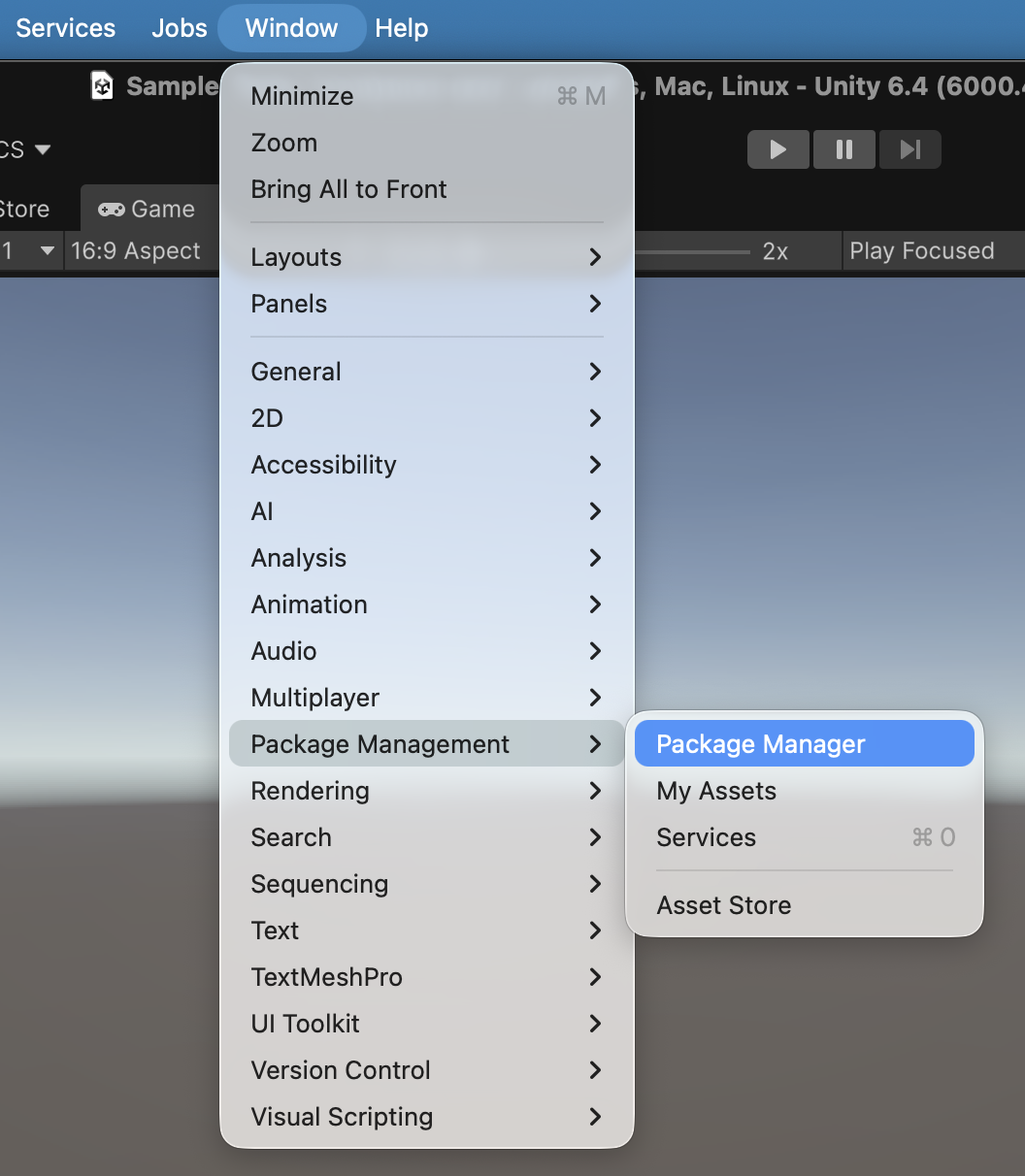
2. Open Package Manager from Window → Package Management → Package Manager.
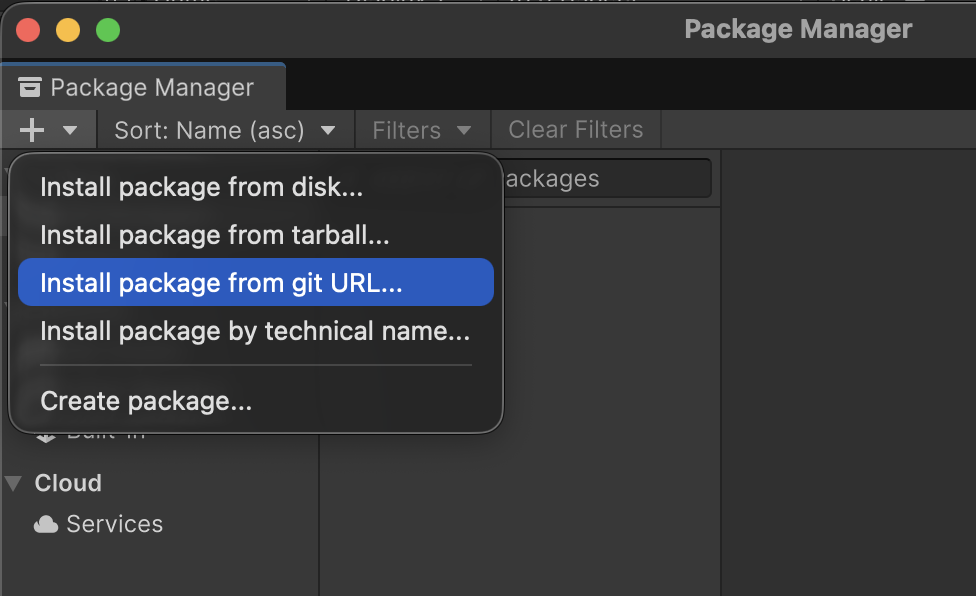
3. Click the + button, select Install from git URL…, enter the following URL, and click Install.
https://github.com/CoplayDev/unity-mcp.git?path=/MCPForUnity#main
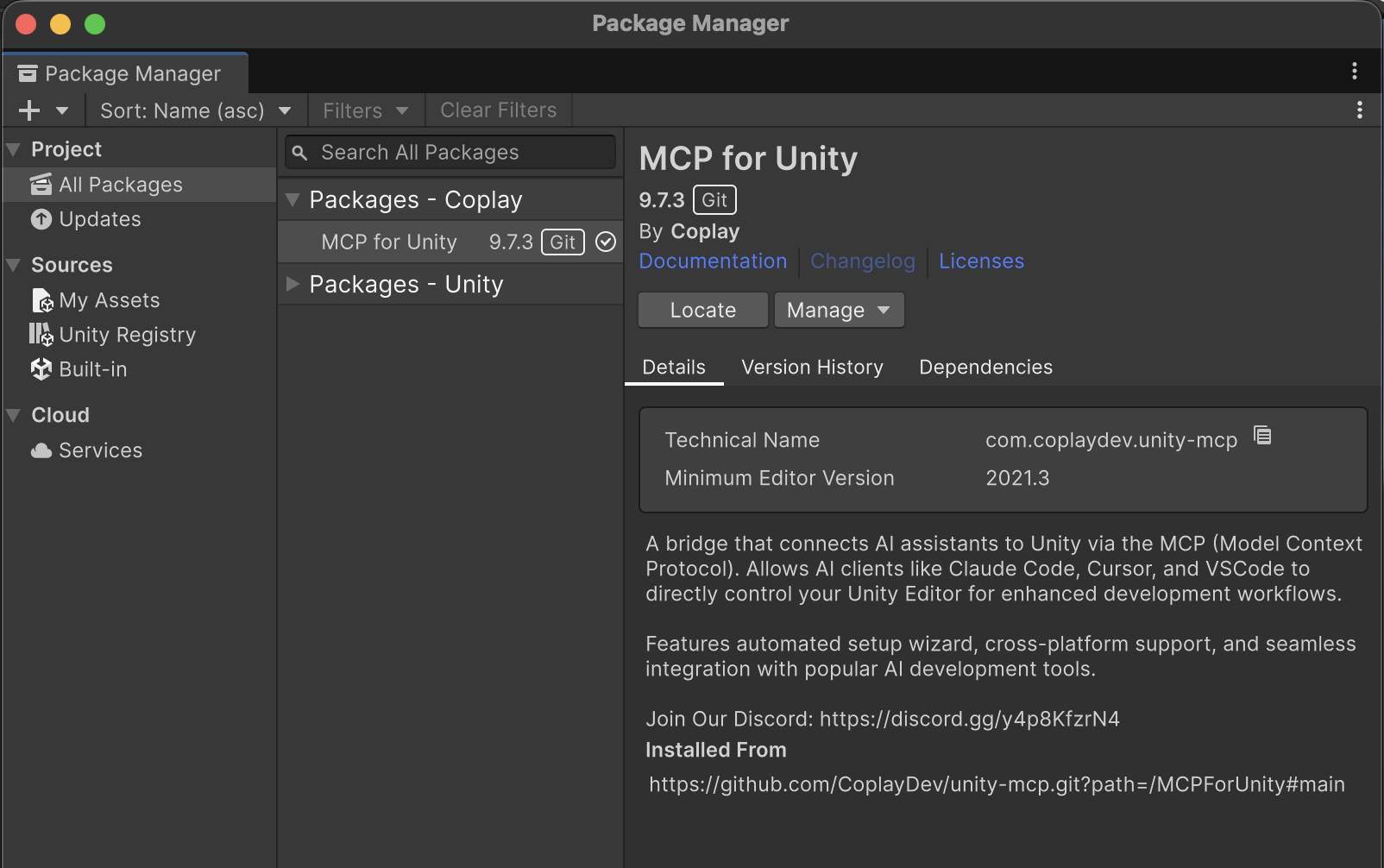
If the installation succeeds, it should look like this.
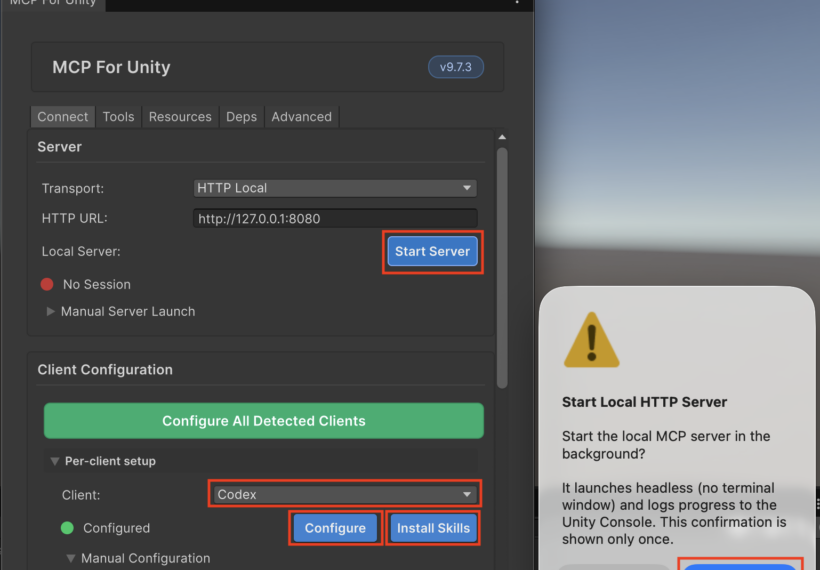
Configuring unity-mcp and Codex
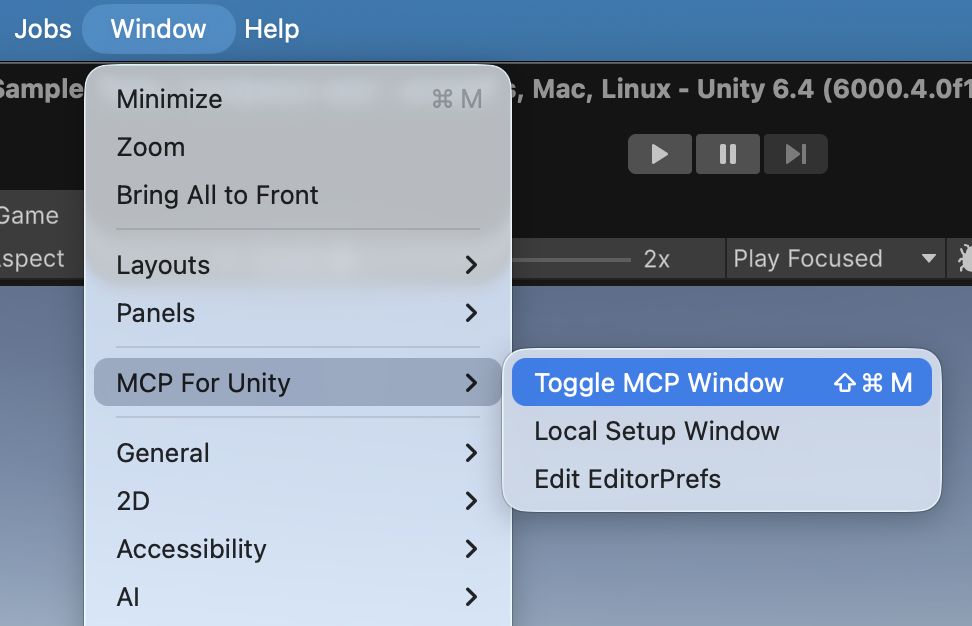
1. Open the unity-mcp window from Window → MCP For Unity → Toggle MCP Window.
2. Click Start Server to start the MCP server. Then set the client to Codex, and click Configure and Install Skills.
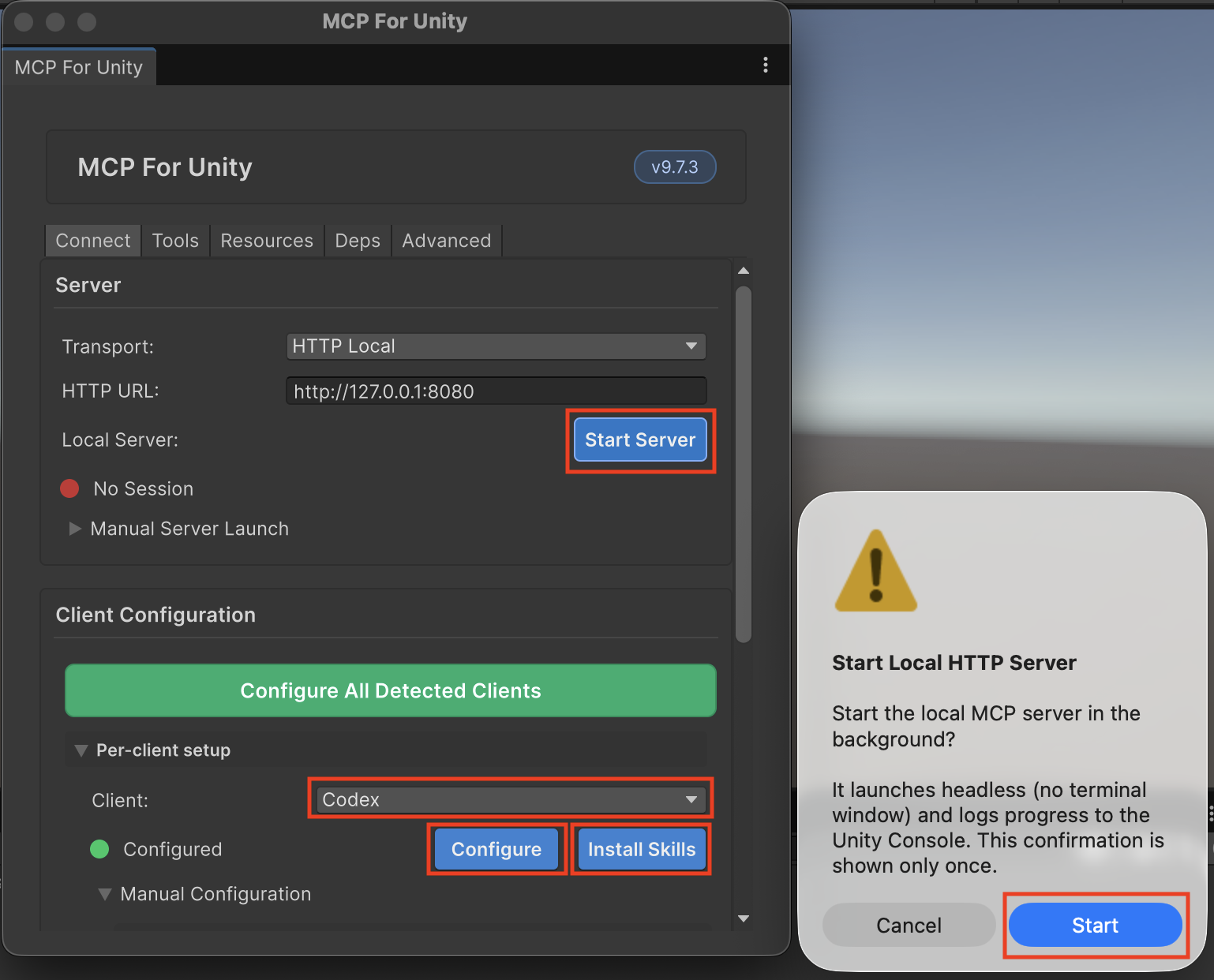
That completes the setup.
If you want to configure Codex only within the project, instead of clicking the Configure button, you can create a Codex configuration file inside the project as follows.
mkdir .codex
touch .codex/config.toml
The contents of config.toml are as follows.
sandbox_mode = "workspace-write"
approval_policy = "on-request"
model_reasoning_summary = "detailed"
model_reasoning_effort = "high"

[features]
rmcp_client = true

[mcp_servers.unityMCP]
url = "http://127.0.0.1:8080/mcp"

[mcp_servers.unityMCP.tools.refresh_unity]
approval_mode = "approve"

[mcp_servers.unityMCP.tools.execute_code]
approval_mode = "approve"

[mcp_servers.unityMCP.tools.run_tests]
approval_mode = "approve"

[mcp_servers.unityMCP.tools.manage_scene]
approval_mode = "approve"

[mcp_servers.unityMCP.tools.batch_execute]
approval_mode = "approve"

[mcp_servers.unityMCP.tools.find_gameobjects]
approval_mode = "approve"

[mcp_servers.unityMCP.tools.read_console]
approval_mode = "approve"

[mcp_servers.unityMCP.tools.manage_editor]
approval_mode = "approve"

[mcp_servers.unityMCP.tools.manage_camera]
approval_mode = "approve"

[sandbox_workspace_write]
network_access = false
The minimum settings required for unity-mcp are only the [features] section and [mcp_servers.unityMCP]. You can see them in the Configuration section by expanding Manual Configuration in the MCP For Unity window.
The other settings are used for the following purposes:
- Automatically approving operations that Codex would otherwise ask for confirmation when using unity-mcp
- Restricting write access mainly to the workspace by using
workspace-write - Disabling network access from shell commands
- Showing detailed reasoning summaries
- Setting the reasoning mode to
high
As a small safety measure, I also added the following to .codex/rules/default.rules.
prefix_rule(
  pattern = ["sudo"],
  decision = "forbidden",
  justification = "Never run sudo from Codex.",
)

prefix_rule(
  pattern = ["rm", "-rf"],
  decision = "prompt",
  justification = "Recursive deletion must be reviewed manually.",
)

prefix_rule(
  pattern = ["rm", "-fr"],
  decision = "prompt",
  justification = "Recursive deletion must be reviewed manually.",
)
Having Codex Develop a Simple Game
1. First, I wanted to do a quick test, so I started Codex and asked it to place a default sphere and cube in the center of the currently open Unity scene.
Please place a default sphere and cube next to each other in the center of the currently open Unity scene.
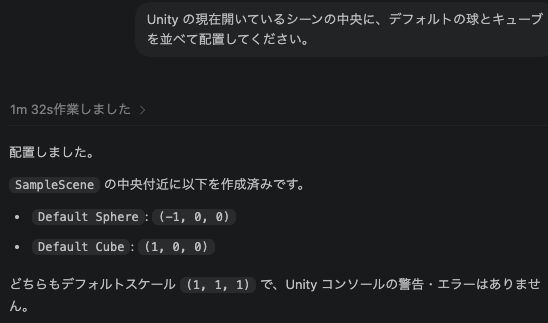
I ran this from the Codex chat window in VS Code.
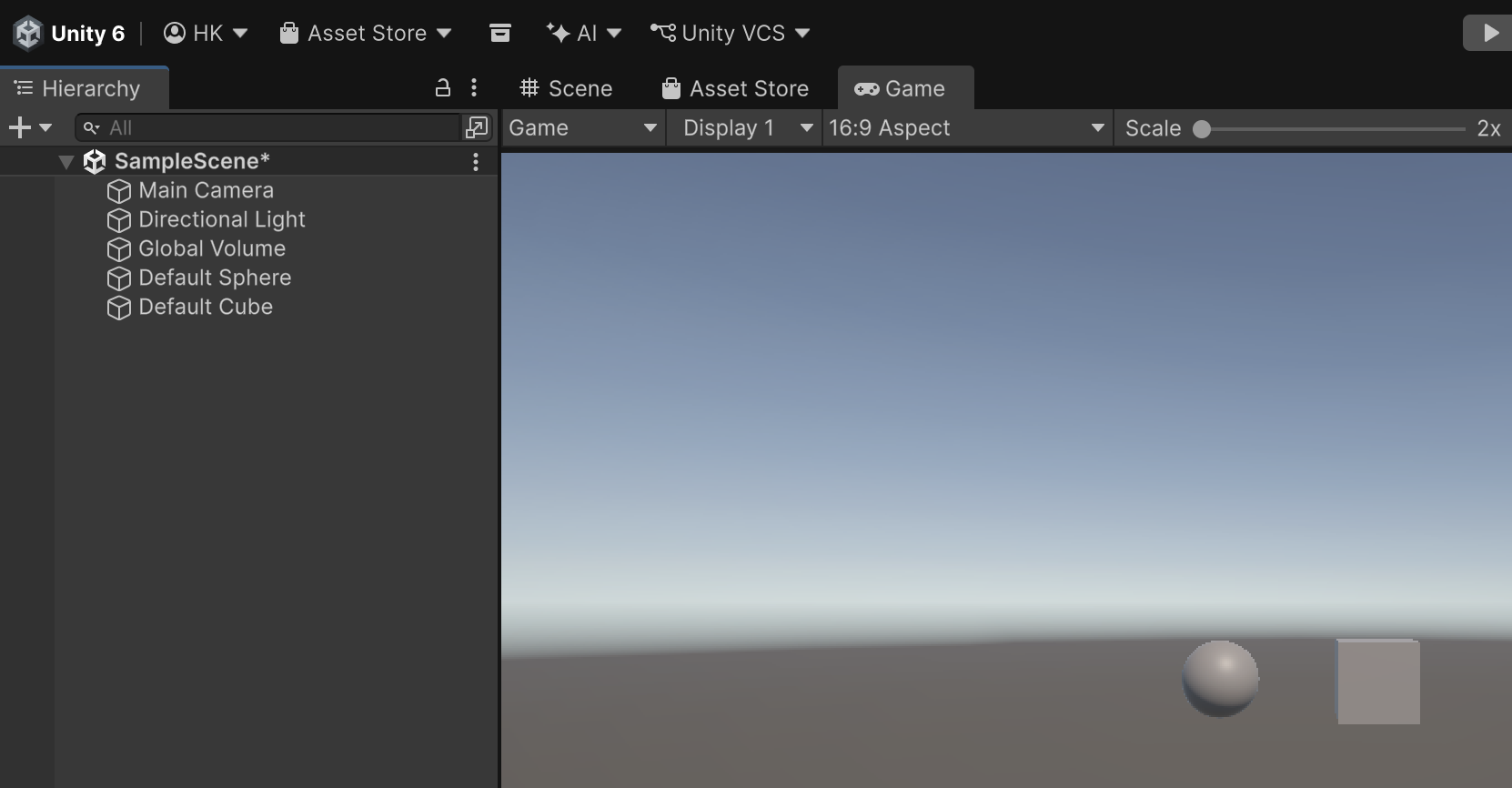
It worked successfully.
2. Since I confirmed that it was working, I then asked Codex to delete the sphere and cube it had created and develop a simple game using the following prompt.
In the current Unity scene, please create a minimal 3D tag game.The player should move using the arrow keys. The stage should be a very simple space with a few obstacles such as pillars. The player clears the game if they can escape for 10 seconds.For the development, please use the minimum amount of code necessary, create meaningful tests for both Edit Mode and Play Mode, and make sure all tests pass.The player, chaser, stage, and other objects can be made using only basic shapes. Also, please delete the sphere and cube that are currently in the scene.
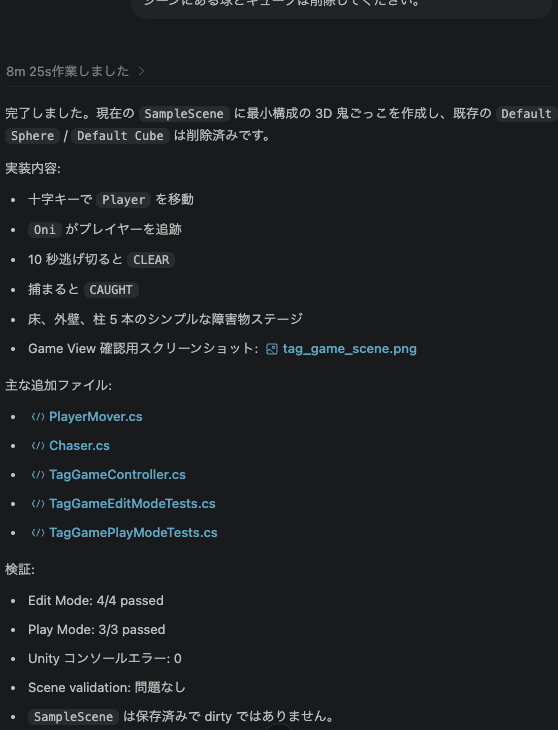
It completed the task.
3. I then ran the game in Unity to check whether it worked.
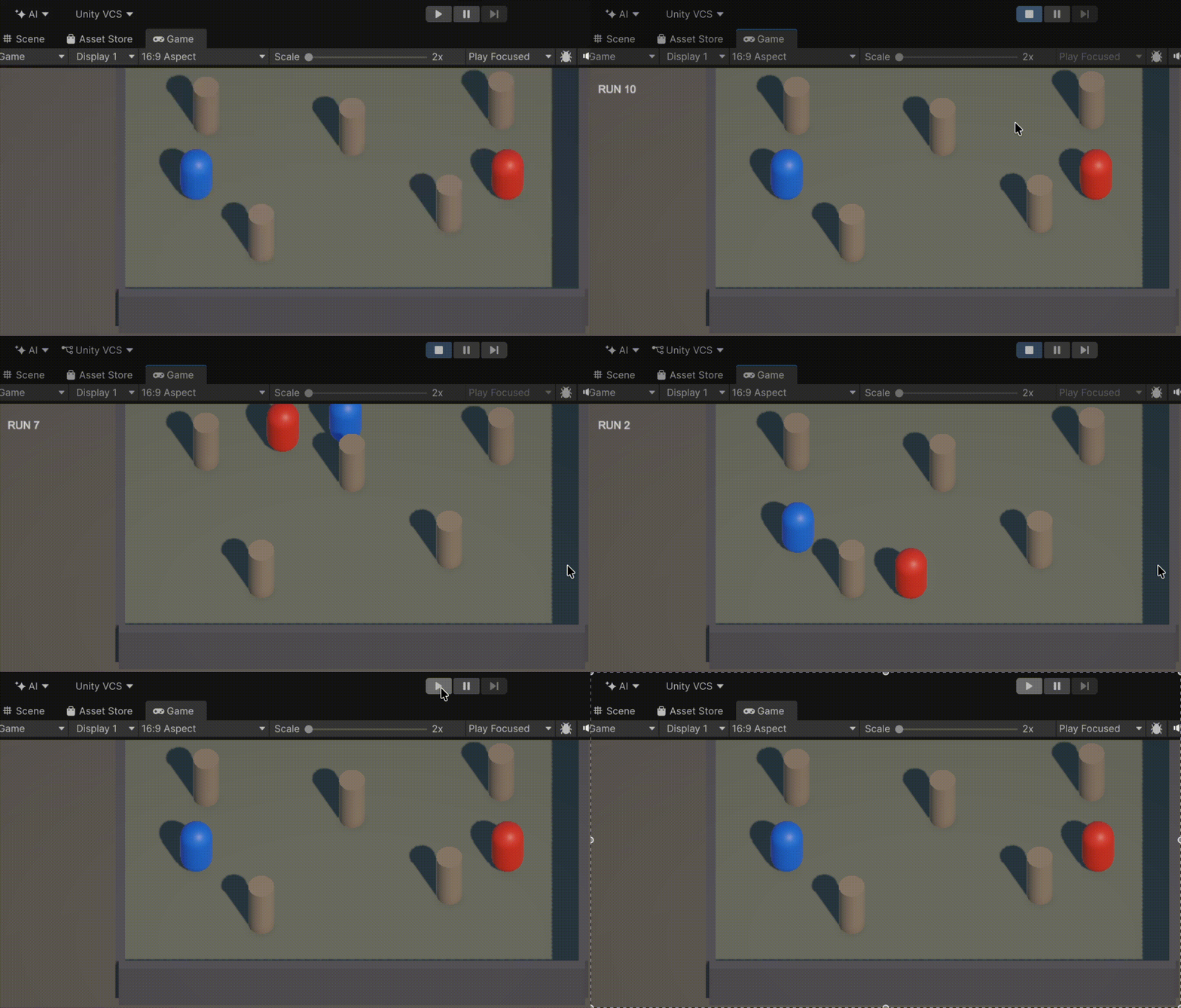
The camera position was not ideal, and part of the stage was cut off, but the game itself was working.
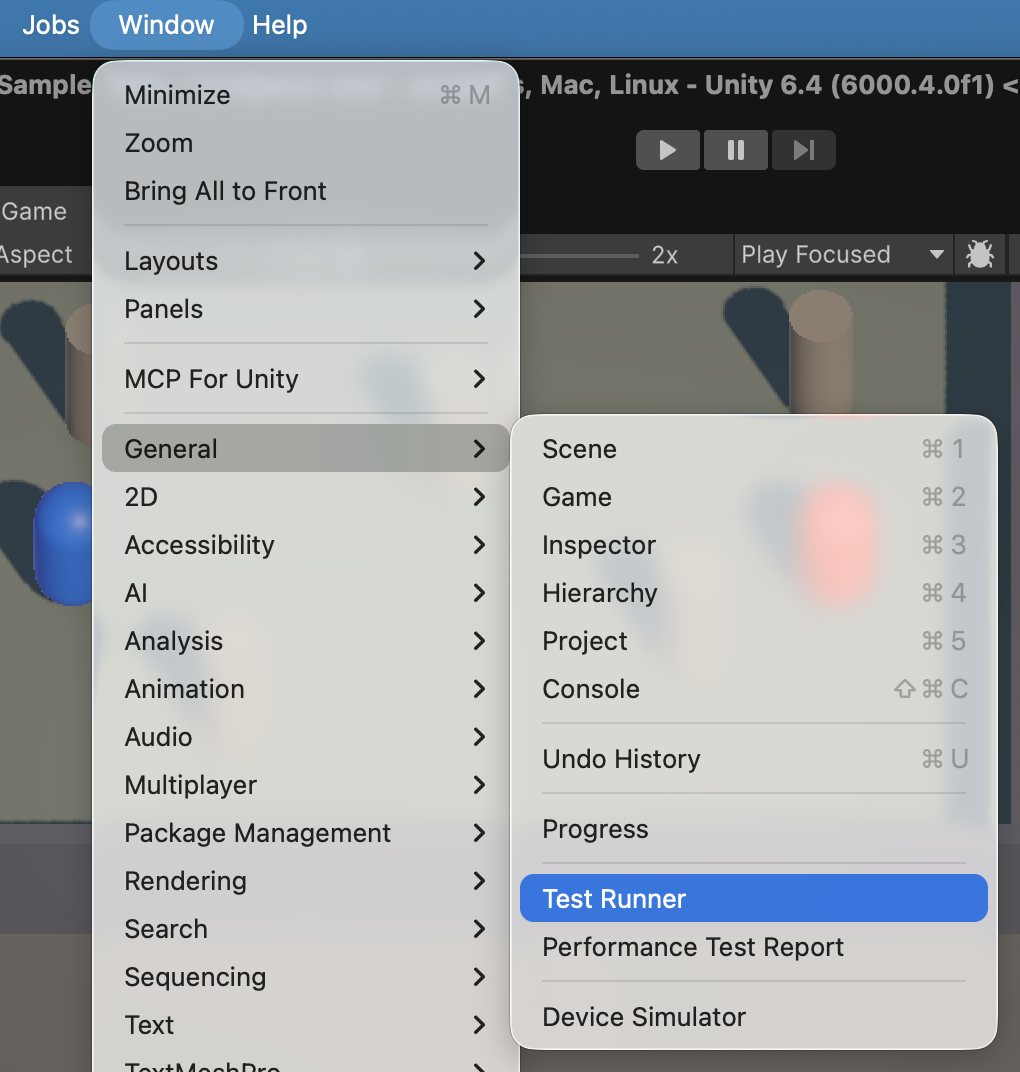
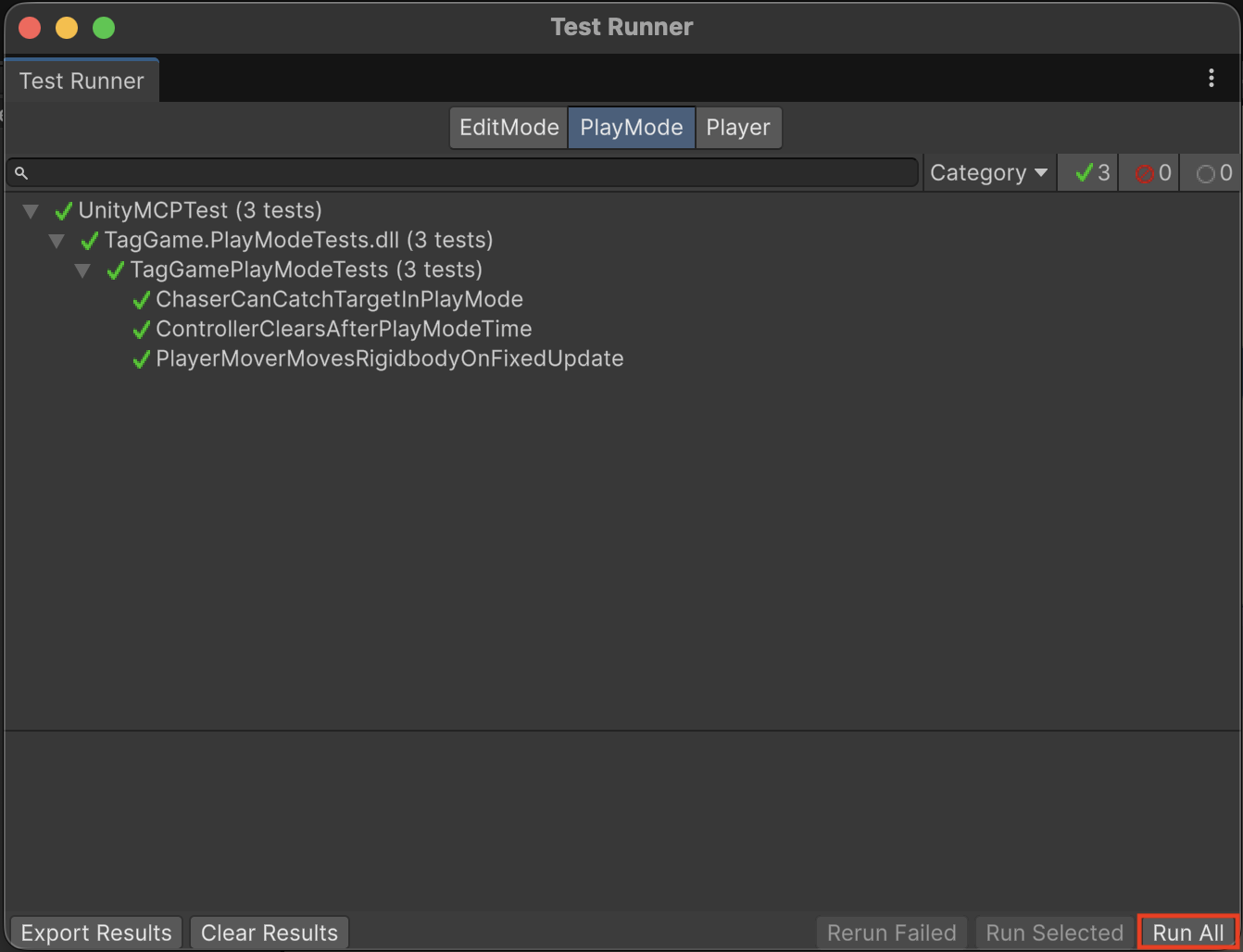
4. Next, I ran the tests from Window → General → Test Runner.
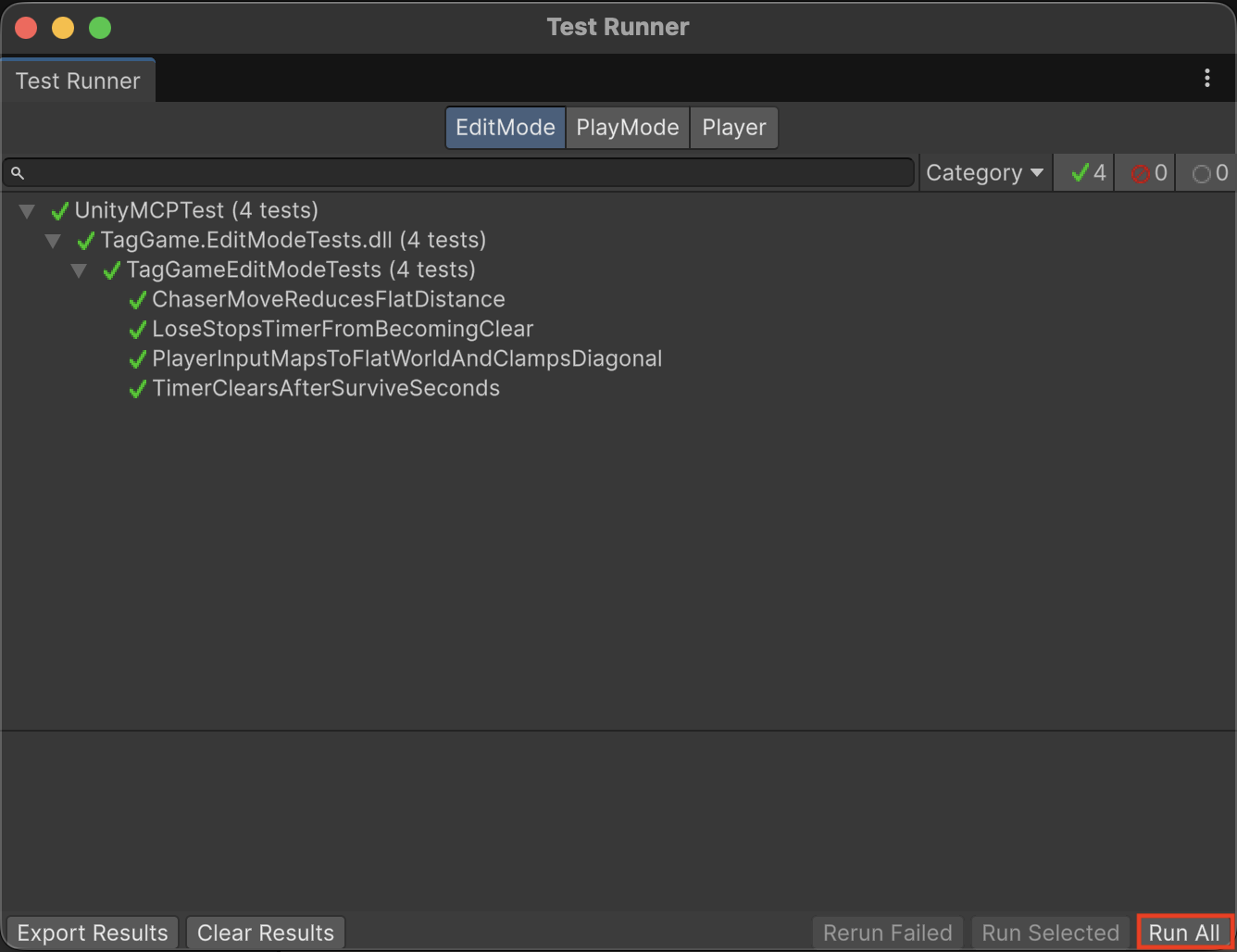
In Edit Mode, there were four test cases, and all of them passed.
In Play Mode, there were three test cases, and all of them passed as well.
5. Since I confirmed that the game worked, I asked Codex to adjust only the camera position using the following prompt.
The top part of the stage is being cut off, so please move the camera position so that the entire stage is always visible.
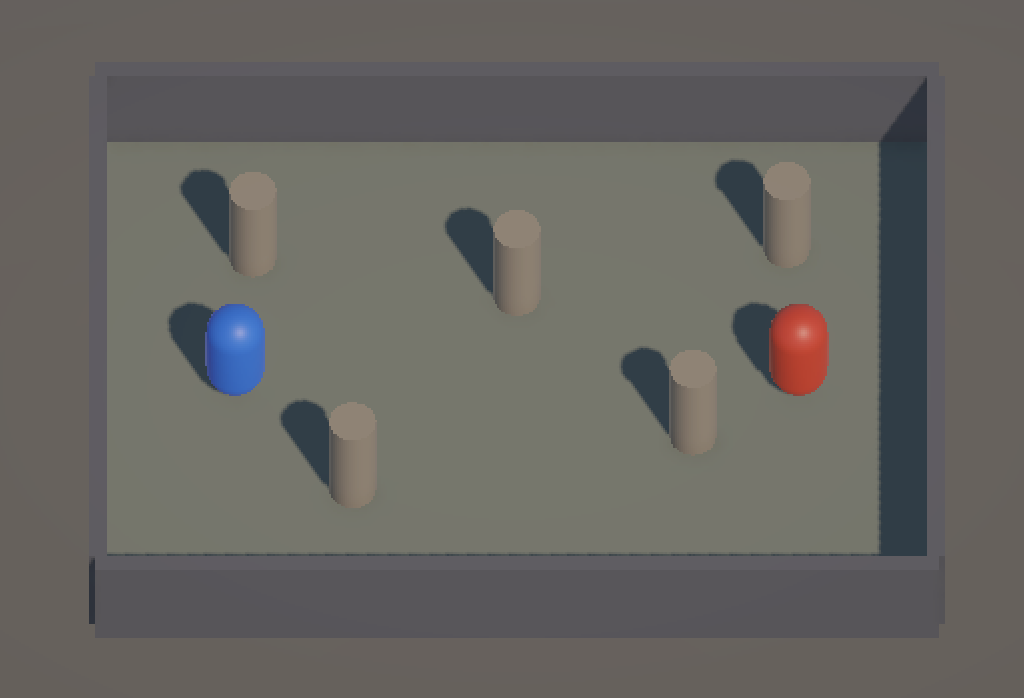
It fixed the camera position nicely.
I tried using the CoplayDev version of unity-mcp, and I found it very easy and convenient to use.