I tried using VibeUE to let Codex control Unreal Engine, and I was able to build a simple game including tests, so I’m leaving this as a memo.

Environment
- MacOS: 26.5.1(25F80)
- Unreal Engine: 5.7.4
- VibeUE: Last Updated at 2026/5/21
- Codex: v0.139.0
- Model: GPT-5.5
Installing VibeUE
1. In Unreal Editor, create a Blank project as a Blueprint project from New Project.
2. From Fab in the Epic Games Launcher, search for VibeUE, add it to your library, and install it.

Setting Up VibeUE
1. Return to the project and follow Step 2 of the VibeUE Installation Guide below.

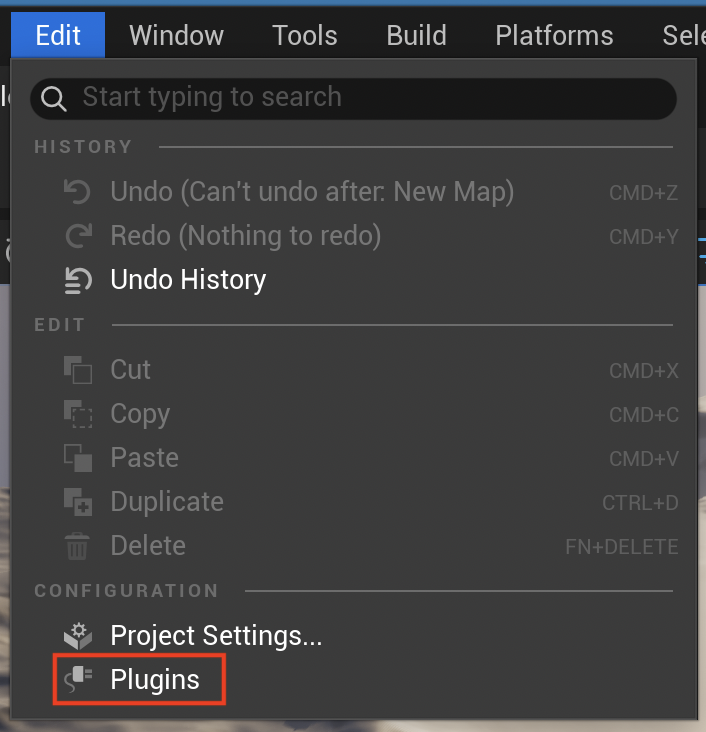
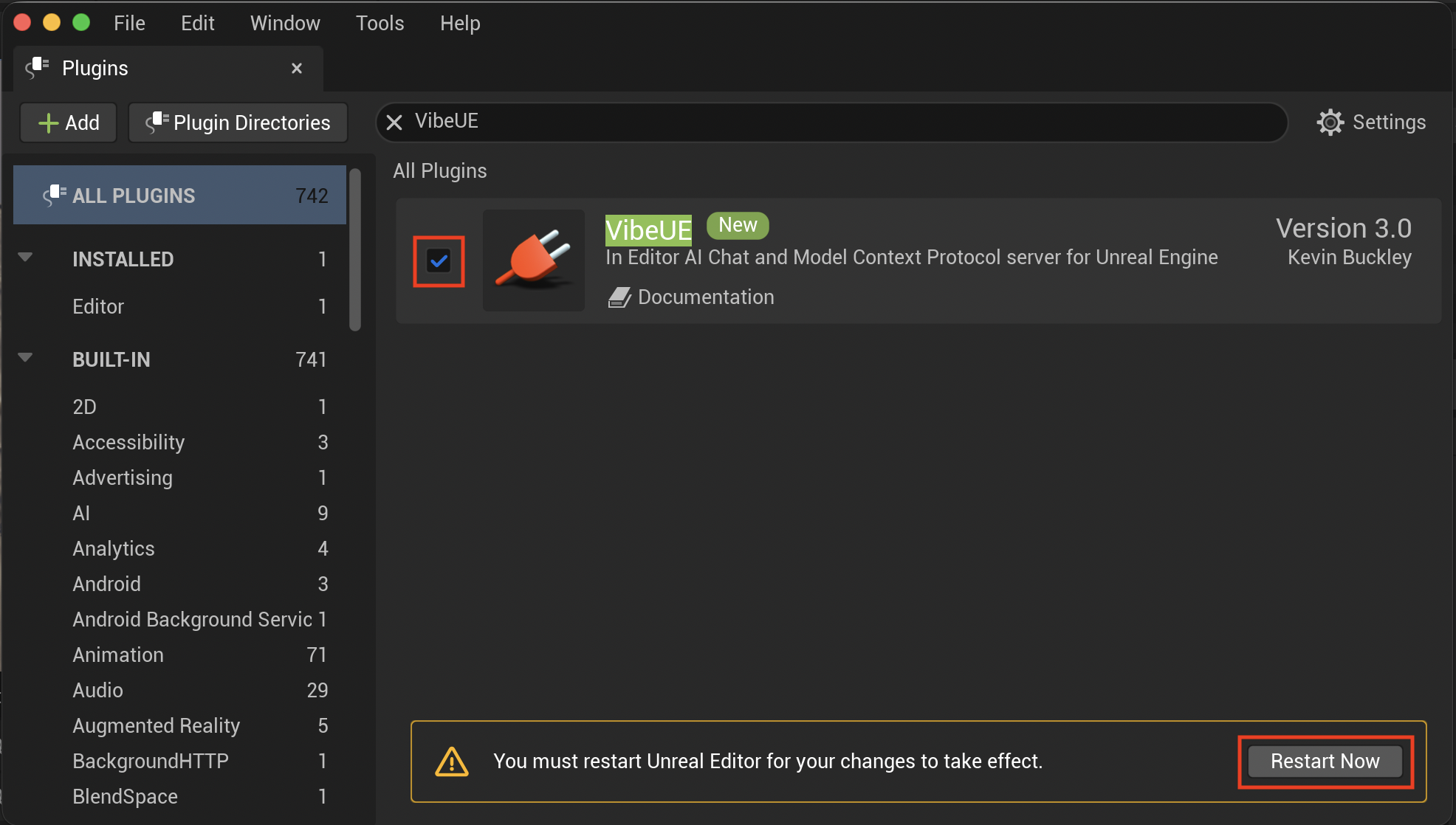
Select Edit → Plugins, search for VibeUE in the window that appears, check VibeUE, and then restart Unreal Editor.
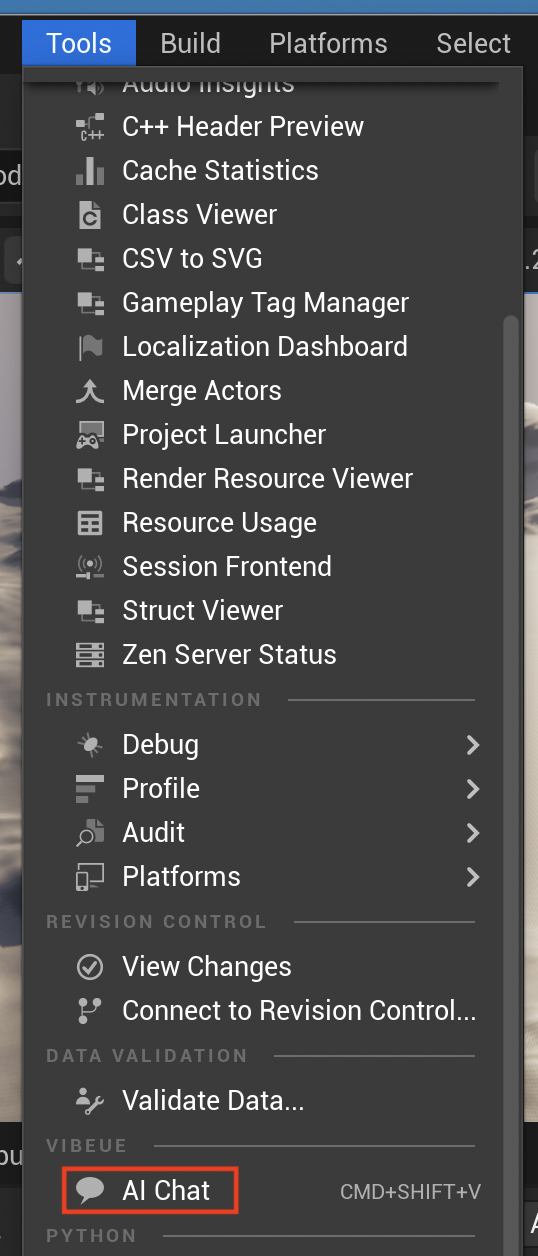
2. Open the VibeUE AI Chat window from Tools → AI Chat.
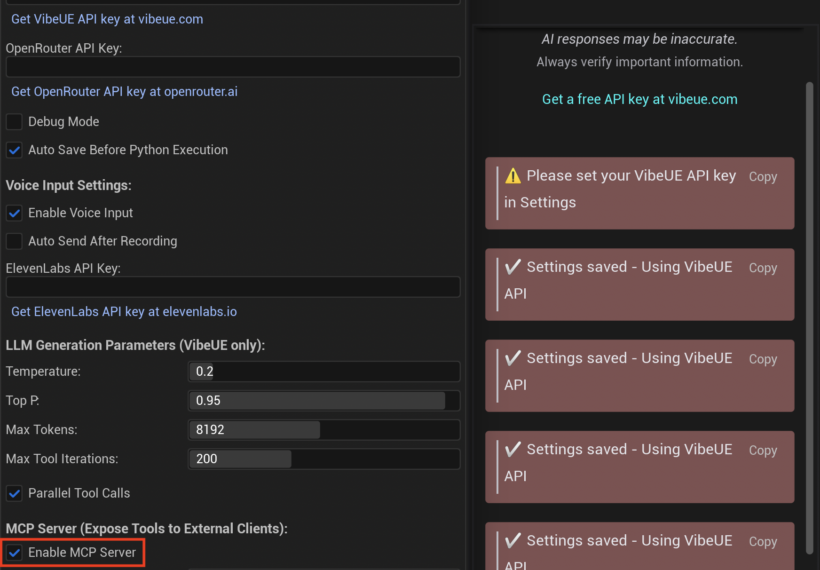
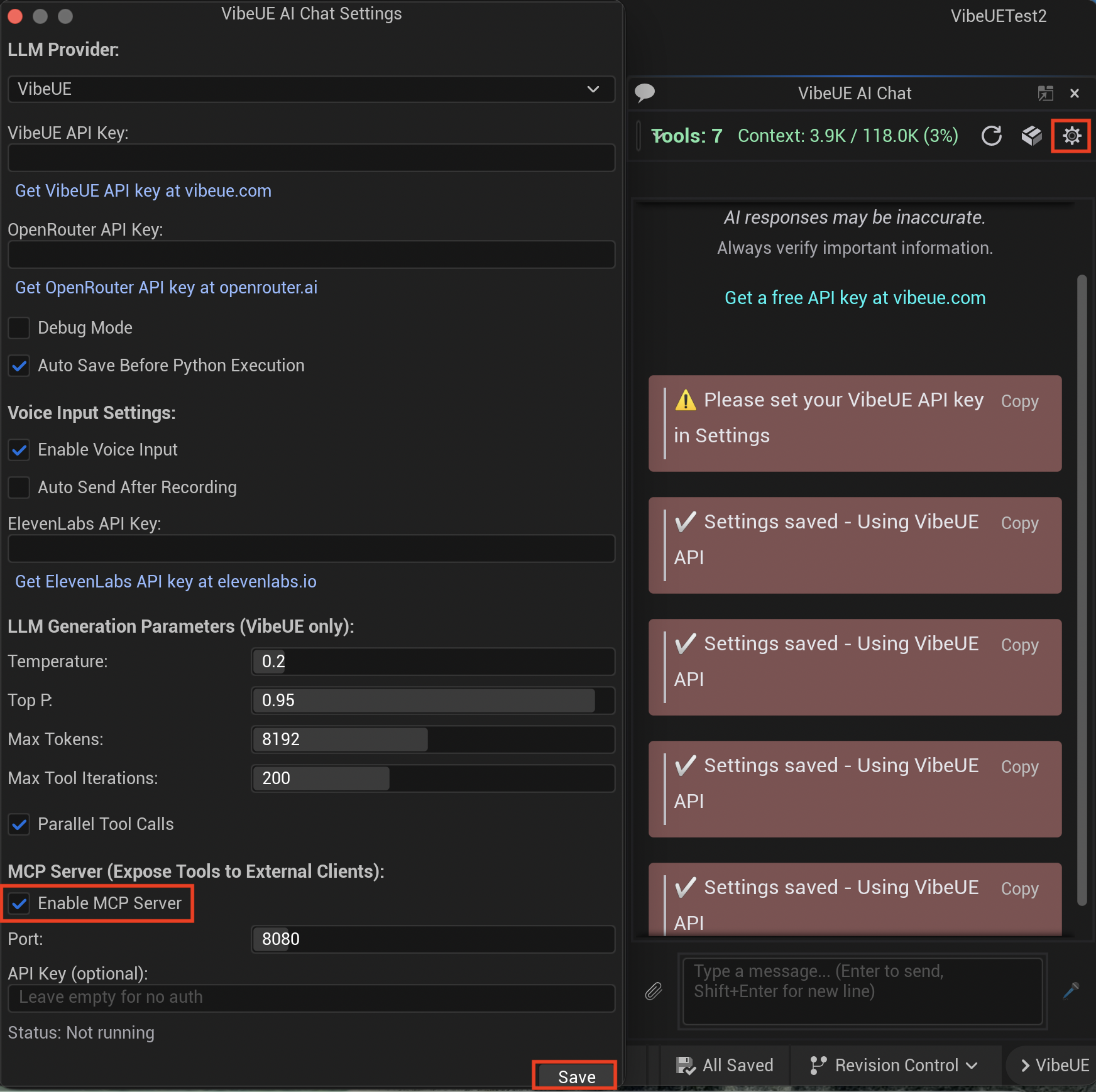
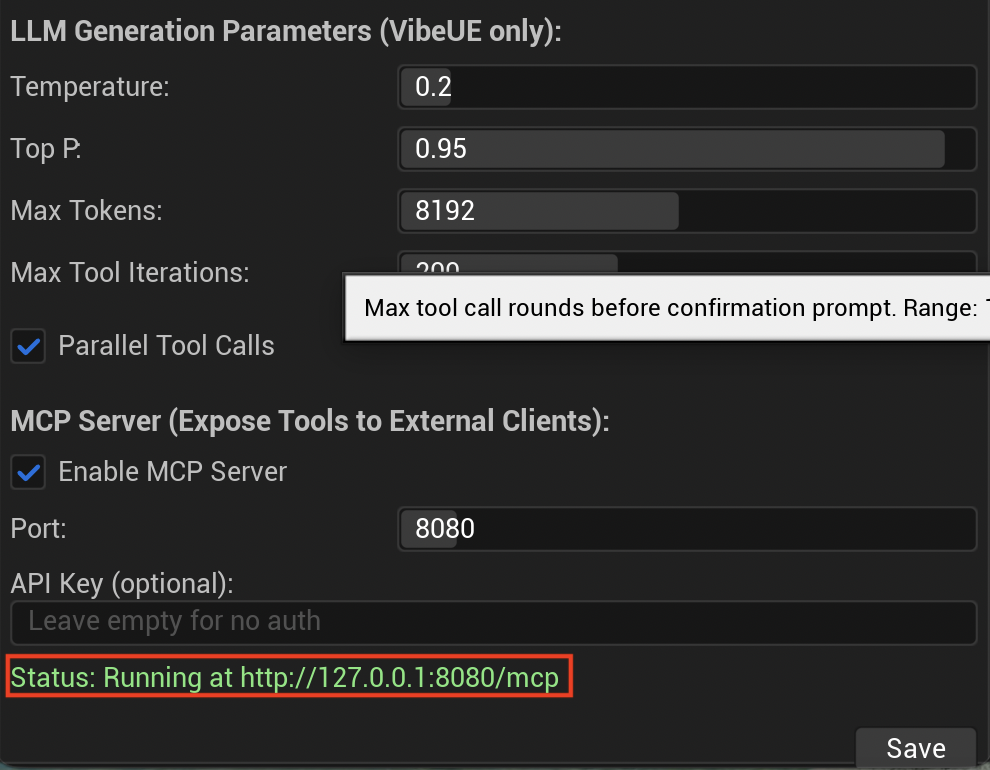
3. Click the gear icon in VibeUE AI Chat. In the window that appears, check Enable MCP Server, then click Save. After that, click the gear icon again and confirm that Status: Running at http://127.0.0.1:8080/mcp is displayed, then close the window.
Setting Up Codex
1. In the project directory, configure Codex’s config.toml and default.rules file. The default.rules file is optional.
Create empty files with the following commands:
mkdir -p .codex/rules
touch .codex/config.toml .codex/rules/default.rules
Configure config.toml as follows:
sandbox_mode = "workspace-write"
approval_policy = "never"
model_reasoning_summary = "detailed"
model_reasoning_effort = "high"

[mcp_servers.VibeUE]
url = "http://127.0.0.1:8080/mcp"
startup_timeout_sec = 30
tool_timeout_sec = 60

[mcp_servers.VibeUE.tools.manage_skills]
approval_mode = "approve"

[sandbox_workspace_write]
network_access = false
The minimum required setting for using VibeUE is only mcp_servers.VibeUE.
The other settings are included because I personally think they are useful. They do the following:
- Automatically approve operations that Codex asks for confirmation on when using VibeUE
- Restrict writes outside the workspace
- Disable network access from shell commands
- Output detailed reasoning summaries
- Set the reasoning mode to high
In default.rules, I added rules to allow the command for running tests, and also added restrictions for sudo and rm -rf, which I personally include in almost all projects for safety.
prefix_rule(
  pattern = ["sudo"],
  decision = "forbidden",
  justification = "Never run sudo from Codex.",
)

prefix_rule(
  pattern = ["rm", "-rf"],
  decision = "prompt",
  justification = "Recursive deletion must be reviewed manually.",
)

prefix_rule(
  pattern = ["rm", "-fr"],
  decision = "prompt",
  justification = "Recursive deletion must be reviewed manually.",
)

prefix_rule(
  pattern = [
    "/Users/Shared/Epic Games/UE_5.7/Engine/Binaries/Mac/UnrealEditor-Cmd",
    "/Path/To/Project/<プロジェクト名>.uproject",
    "-nullrhi",
  ],
  decision = "allow",
  justification = "Allow command-line Functional Testing for this Unreal project.",
)
2. Check whether Codex can control Unreal Editor. For example, ask it to create a simple actor with the following prompt:
In Unreal Editor, please create a sphere and a cube side by side in the center.
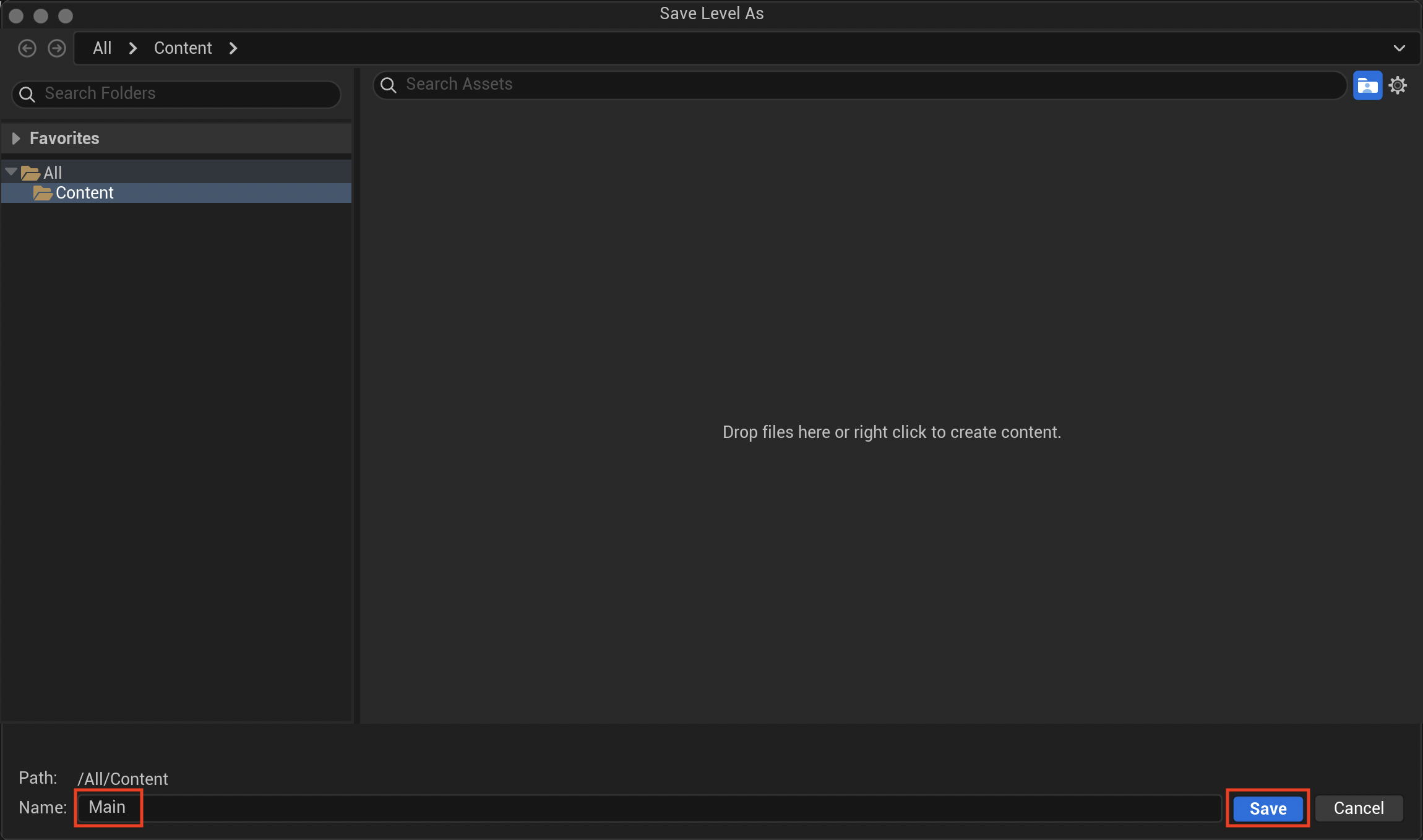
When Codex starts processing the request, a screen may appear asking you to name and save the level. If you leave it as-is, Codex will keep waiting, so enter an appropriate name and click Save.
Sometimes Unreal Editor may crash. If that happens, open Unreal Editor again, confirm from the gear icon in VibeUE AI Chat that the MCP server is running, and then ask Codex again.
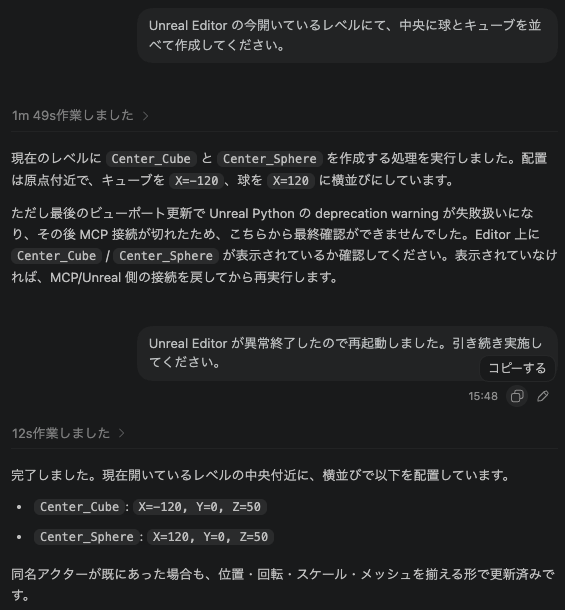
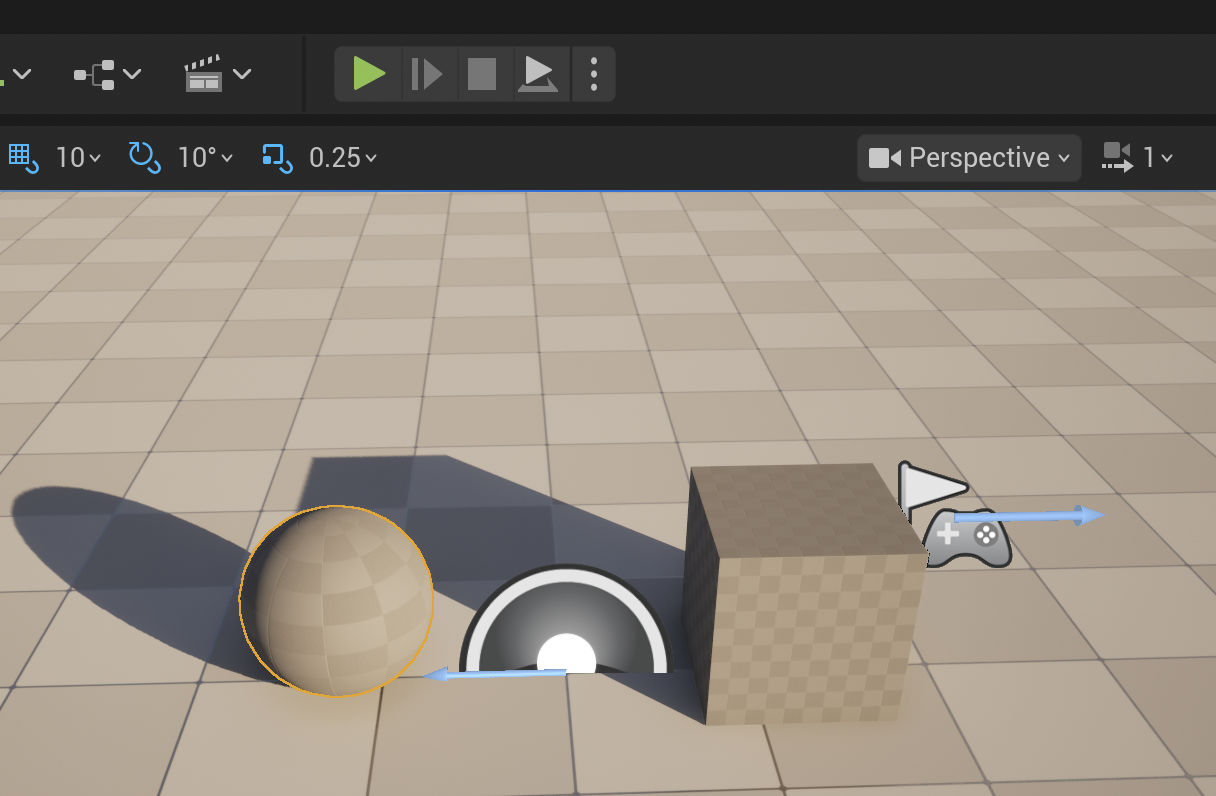
It worked successfully.
Having Codex Develop a Simple Game
1. Since I wanted Codex to also create Functional Test cases, I enabled the Functional Testing Editor plugin first. AI is not used for this step, but I enabled it in advance just in case. From Edit → Plugins, check Functional Testing Editor, and then restart Unreal Editor.
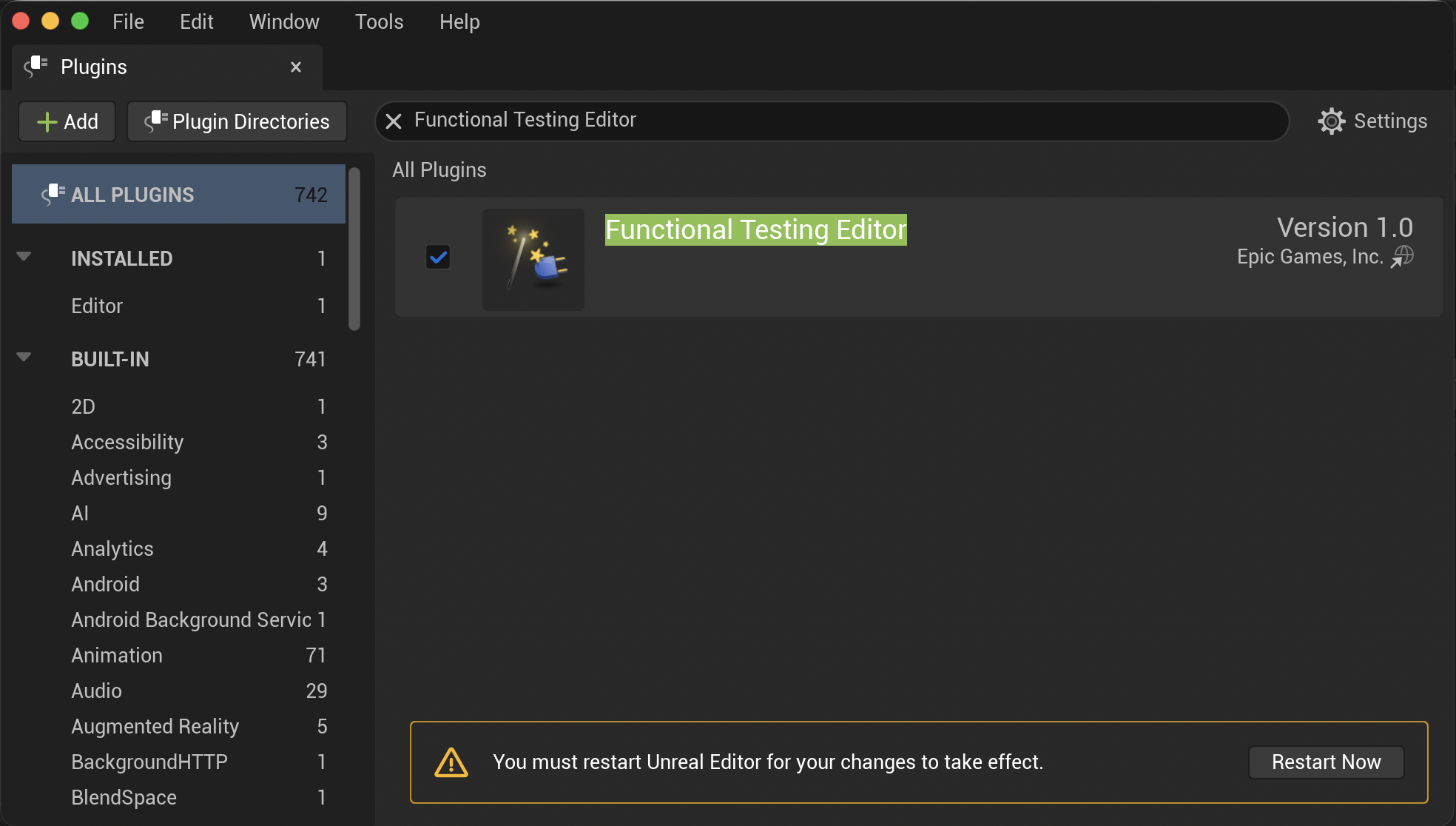
2. Ask Codex to delete the sphere and cube it created earlier, and then develop a simple game with a prompt like the following:
In Unreal Editor, please create a minimal 3D tag game.

The player moves using the WASD keys.
The stage should be the simplest possible space, with a few obstacles such as pillars.
The game is cleared if the player can keep running away from the tagger for 10 seconds without being caught.

Please implement the development using minimal Blueprints.
Also, please prepare Functional Test cases that can test the major game states, and make sure the tests pass.

The player, tagger, stage, and other elements can be made using only basic shapes.
Also, please delete the sphere and cube currently in the level.
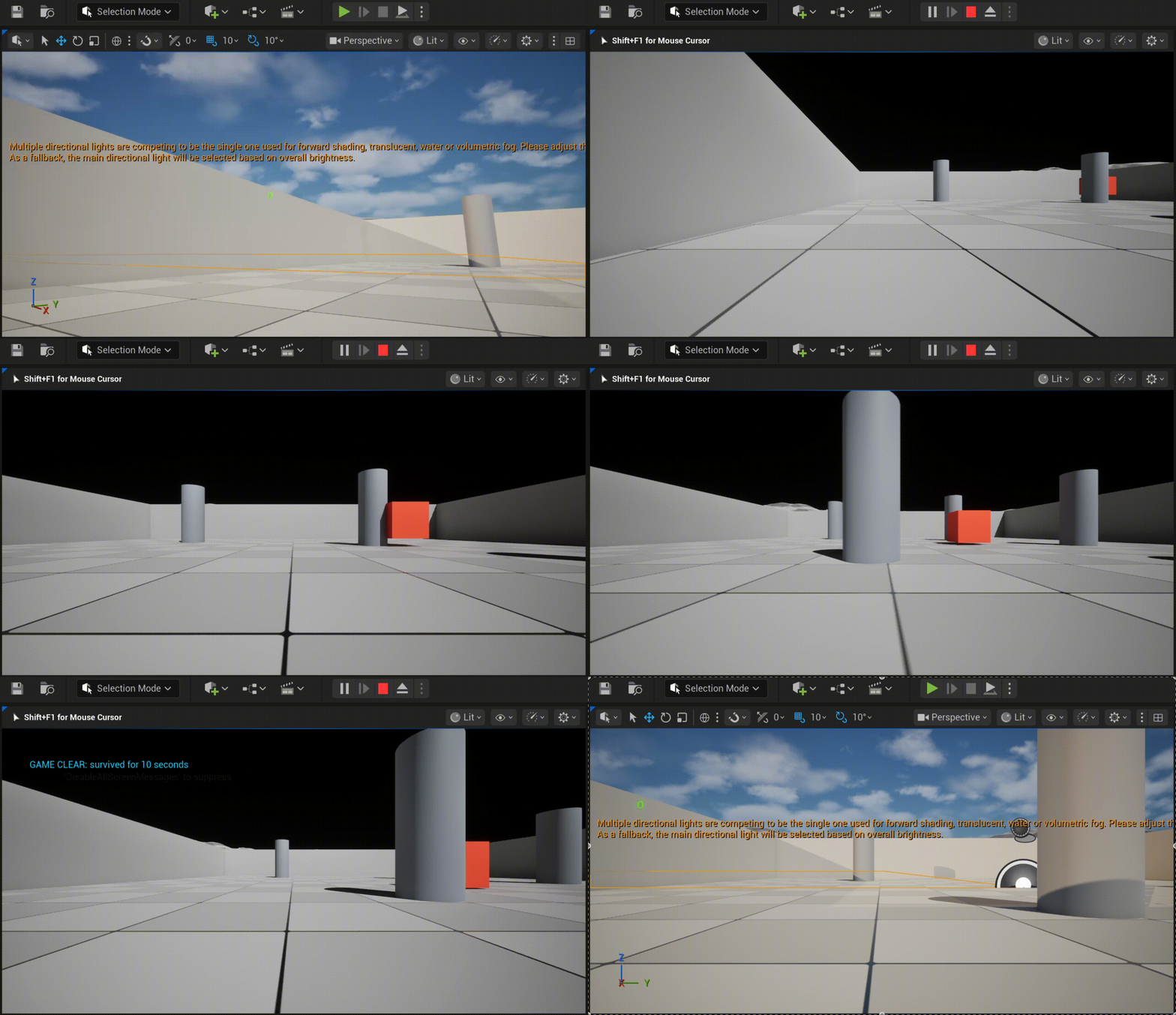
The game worked.
However, Codex left some Blueprint compile errors unresolved, and the camera was also broken, so when I played the game, it showed a strange area. I had to ask Codex to fix it several times.
When I kept asking for fixes, Codex sometimes made things unnecessarily complicated. If the issue does not get fixed after several attempts, I think it may be better to tell it something like, “Please make it simpler.”
3. To check whether the Functional Tests also work, open Tools → Test Automation, select the test at the deepest level under Project → Functional Tests, and run it.
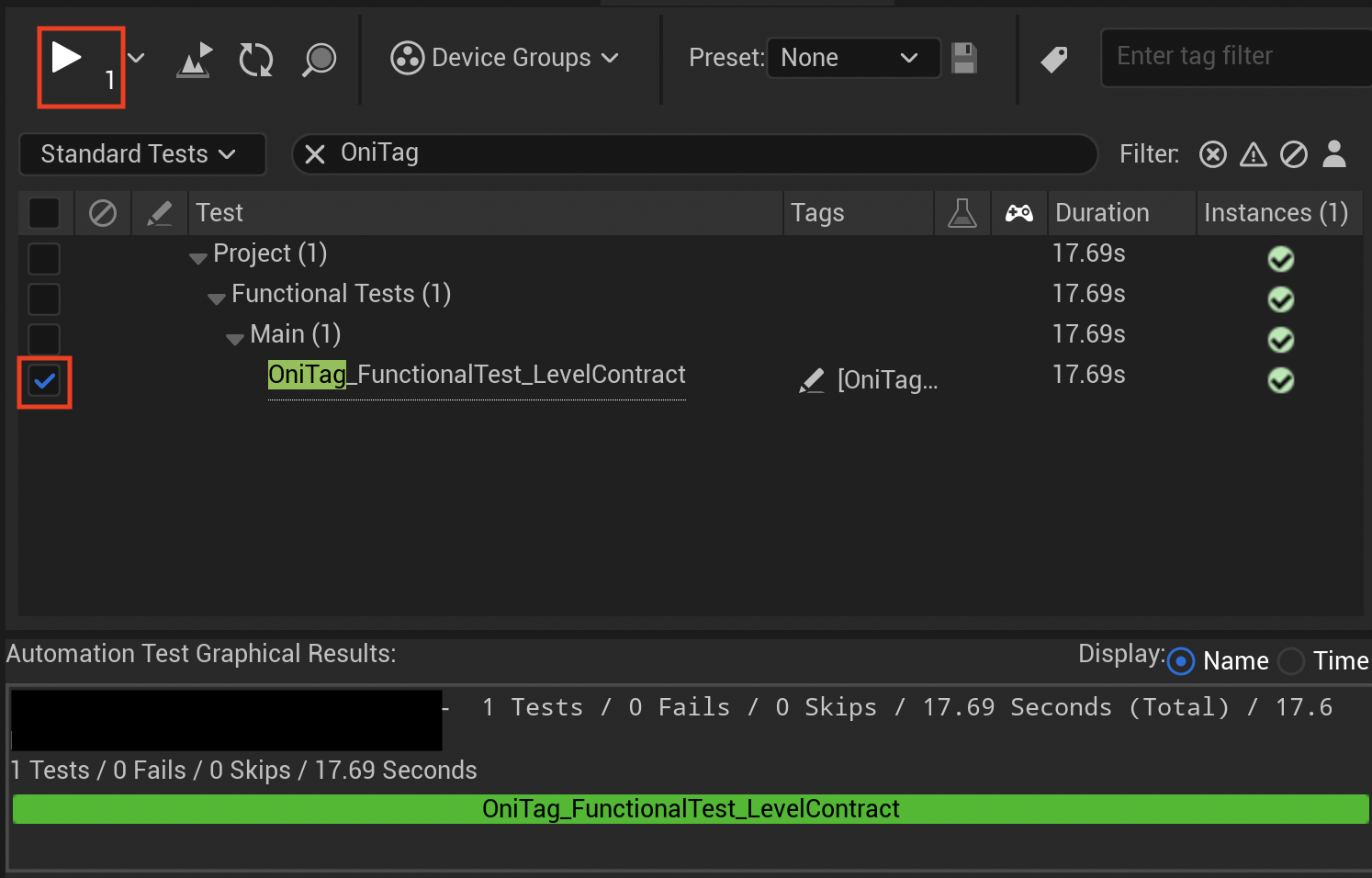
The tests passed.
I tried using VibeUE. Development with Unreal Engine Blueprints may still be difficult for AI, and I had to ask for fixes many times before things worked properly. However, VibeUE itself was very easy to use and convenient.